 RollPoll
The guide · Section 4 of 15
Posters and signs
A QR sign for each place, adding many at once, the poster maker, and the results poster.
Locations: a sign for each place
When people will vote by scanning a sign — at a front door, a counter, a notice board — give each place its own sign. Each sign has its own QR code, so you can see how many votes came from each place.
In the poll's Locations panel:
- Type the place's name, and press Add. It's printed small in the top corner of its sign, for you to match each sheet to its place — a number like N01 works well. People who scan the sign don't see it.
- Its row appears with its scans and votes so far, and its buttons:
- Print sign — the ready-made sign for that place, to print. It shows the poll's question, the one people answer. Statements and the About you questions aren't on it.
- Make a poster — your own poster around that place's code. See below.
- Copy link — that place's own link.
- QR image — the code alone, as an SVG or a PNG file.
- Rename — change the place's name, type the new one and press Save name. You can do it at any time, even after the poll has opened or closed.
- Archive — takes a place you've stopped using off the list. Show retired shows the archived ones again, each with Restore and Delete.
- Delete — takes the place off this poll for good. It asks once first. A vote already cast from it still counts.
- Print all signs prints every place's sign, one to a sheet, in the order you added them.
If the list of places can't be loaded, the panel says so, in place of the list. Reload the page.
A place's name is just text. RollPoll never reads a number out of it: No. 111, Front door and 7 are all simply names, the list keeps the order you added the places in, and two places may have the same name.
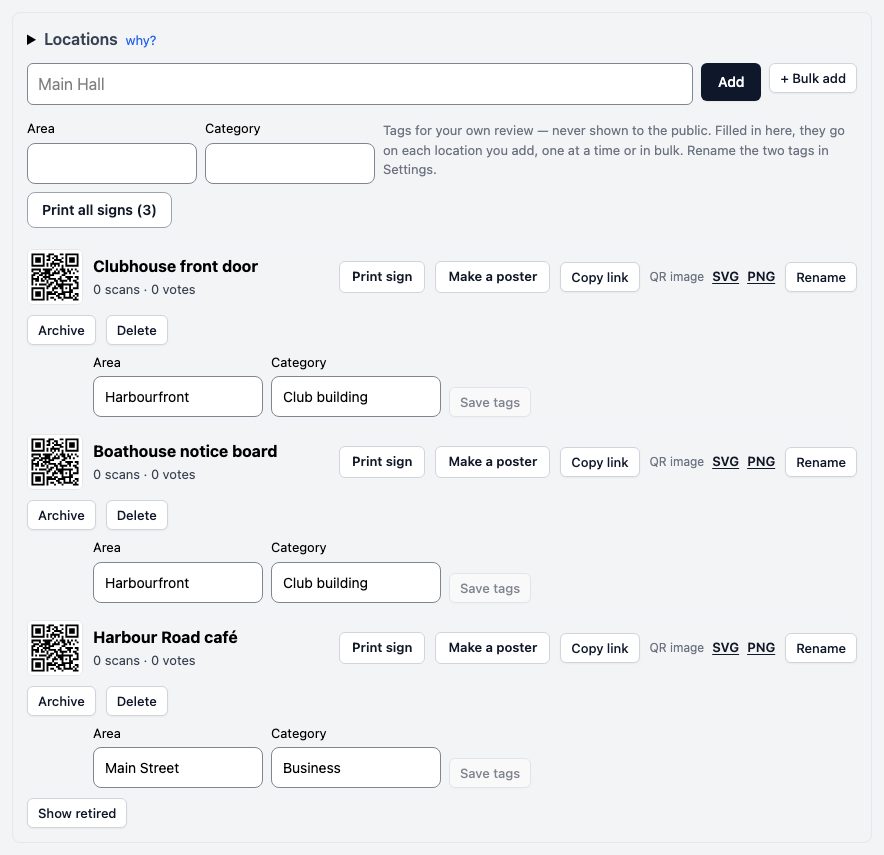
Renaming a place changes only its name. Its code, its link, its scans and its votes stay exactly as they are, and every sign already up keeps working. The new name shows in this list, on the next sign you print, in the poster maker, and wherever the place is named with the results. A sign already printed keeps the name it was printed with.
Many places at once
Press + Bulk add.
- Labels — type one place per line, and press Add labels.
- Numbered range — a numbered set, such as Table 1 to Table 30: type the Prefix, the Start and the End, and press Generate range. It starts filled in with No. and the number after the places you already have — with 20 places, No. 21. Change either as you like; it only writes names.
Up to 1,000 at once, each with its own QR code.
A bulk add makes all of them, or none: if one line can't be added, nothing is, and it says why.
Your own tags
Area and Category are two tags you can give each place, for your own review of where votes came from. Only you see them. Fill them in before you press Add or Add labels and they go on that place, or on every place in the batch; then both boxes clear, ready for the next. Or change a place's tags in its row and press Save tags. By tag groups the poll's votes by those tags. Rename the two tags in Settings, under Location tags.
The poster maker
A ready-made sign is plain. To make a poster of your own around the same code, press Make a poster — beside a place, or under Share this poll for the poll's own code.
The poster maker takes five steps, top to bottom:
- 1. The size — Letter 8.5 × 11, Tabloid 11 × 17, 18 × 24 or 24 × 36, then Portrait (tall) or Landscape (wide).
- 2. The layout — six layouts, drawn small so you can compare them. Big code — as large as the sheet allows fills the sheet with the code. On the other five, Code size is Standard or Larger.
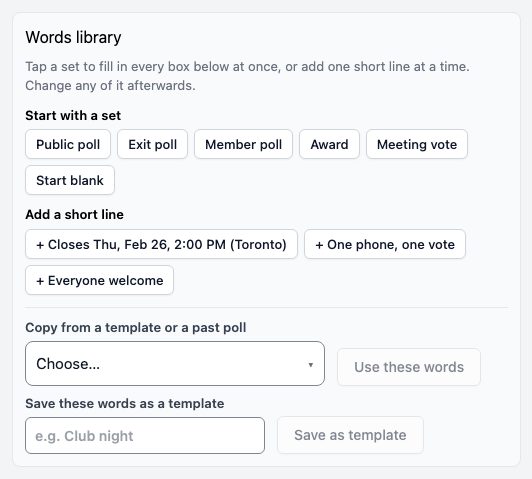
- Words library, above the words — Start with a set fills every box below at once, for a Public poll, an Exit poll, a Member poll, an Award or a Meeting vote; Start blank empties them. Add a short line puts one line in the next empty short line: when the poll closes, in its own time zone, the place's name, and who votes. Then, as on About your voters: Copy from a template or a past poll — choose one and press Use these words to fill every box — and Save these words as a template: type a name and press Save as template. Your templates are yours alone, and the same name replaces the last one. Change any of the words after.
- 3. The words — a Headline, One line under it, up to four Short lines — when, where, who (up to 4), and a Footer line. If your words are too long to read at that size, the box says so.
- 4. The look — the Typeface, your Accent colour, a light or dark Background, and a Logo (PNG, JPG or WebP, up to 2 MB).
- 5. Download, print or save — Download PDF or Print. Save this poster keeps your choices for next time, not the file.
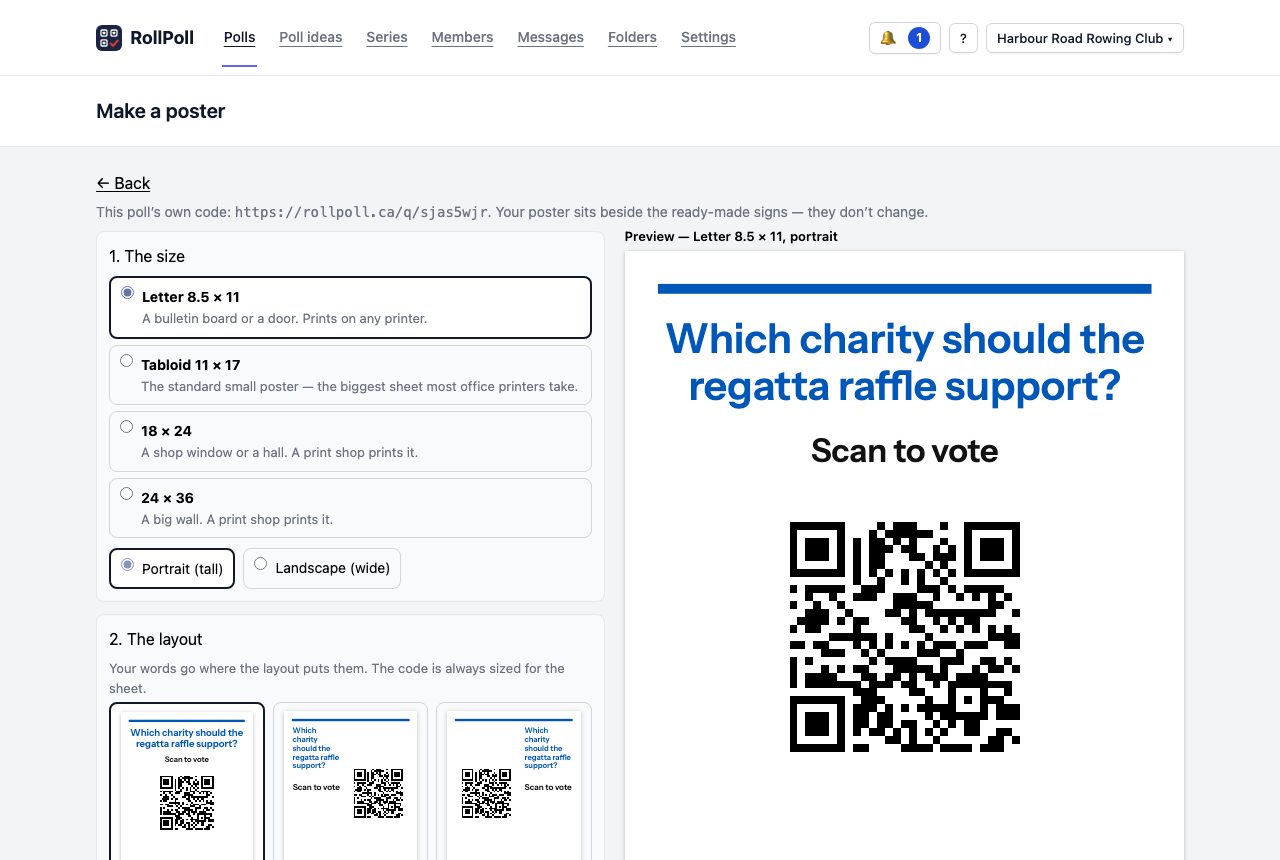
A poster for a place carries that place's name small in its top corner, at the end of the coloured stripe, the same way its sign does. The poll's own poster has none.
The code always sits on white, with a clear white margin, whatever you pick — that's what lets a phone read it. The line above the buttons says how wide the code is and how far away a phone can read it. A good rule: a phone reads a code from about ten times its width.
The results poster
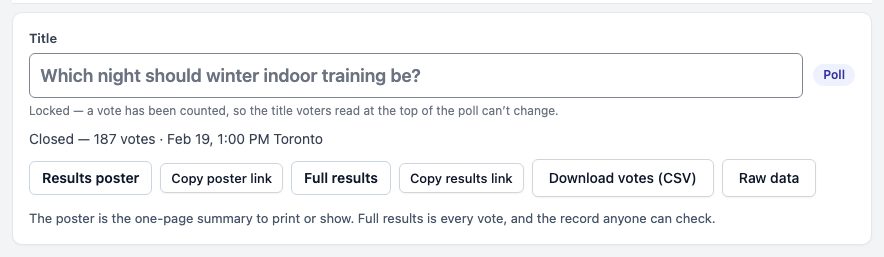
When a poll closes, its screen gets Results poster: the result on one page, to print or put on a screen. Copy poster link copies its address.
Still stuck? Signed in, use Contact RollPoll. Not signed in, Contact us.