 RollPoll
The guide · Section 10 of 15
Series and permanent signs
A poll you run again and again, on a schedule, with signs whose code never changes, and a calendar people can follow.
What a series is
A series is a poll you run again and again — a weekly question, say. Each round is a poll of its own. Each place gets a permanent sign: its QR code never changes, so you print it once and leave it up. While a round is open, scanning the sign opens that round's poll. Between rounds, it shows the latest results and when the next round opens.
Series are for public polls only. A member poll can't run in a series.
Start a series
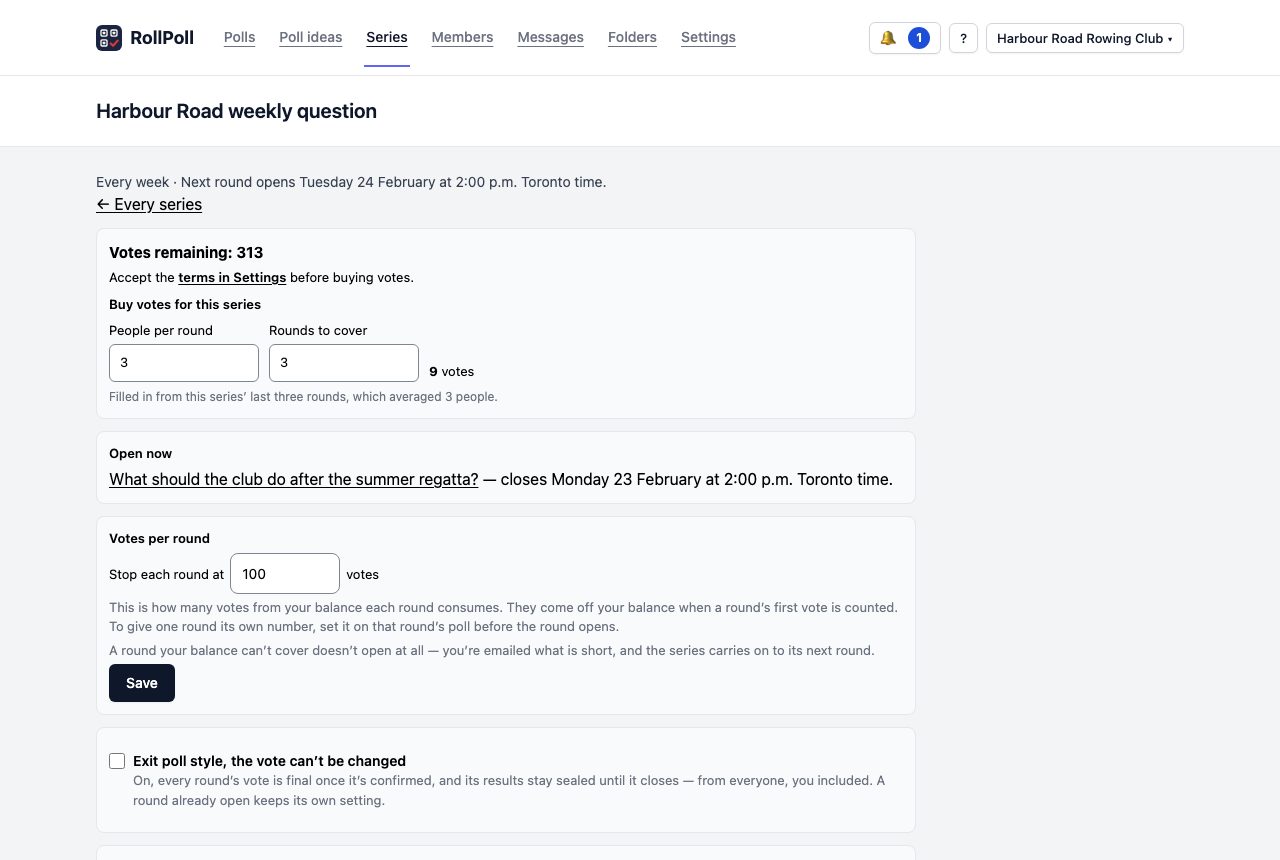
Open Series at the top of the screen. Under New series, type its name and a vote limit in Stop each round at, and press Create series.
Each round uses up to that many votes from your balance. They come off when the round's first vote is counted. A round your balance can't cover doesn't open: you're emailed what is short, and the series carries on to its next round.
On the series' own page, Votes per round changes that number — press Save. Buy votes for this series works out what to buy: type the People per round you expect and the Rounds to cover, and it gives the number of votes. Once the series has run three rounds, these are filled in from what they actually took.
The schedule
Under Schedule, choose Repeat on a schedule or No schedule — I open each round.
Exit poll style, the vote can’t be changed is set once for the whole series: every round carries it, and a round already open keeps its own.
Time zone is the series' own: every round takes it when it is made, and changing it reaches the rounds not yet opened, never one already running. On a schedule, set Repeat every (days, weeks or months), when the Next round opens, and how long Each round stays open for. Press Save schedule. A round's poll closes on its own at the end of that time. Pause stops the rounds until you resume.
What each round runs
- Up next — your own drafts, in order. Write a draft in Your polls, then add it here with Add to Up next. Each round runs the first one.
- Backup poll — runs when a round comes and nothing is up next. With no backup, that round is skipped and your signs say the next poll is coming soon.
- Ready-made polls — a round marked Random draws one of these, and records the draw so you can check it.
- Voters’ pick — the top idea on your Poll ideas list becomes the round's poll. Tick A voters’ pick needs my OK to be emailed first, so you can approve it, reword it or choose another idea.
Upcoming rounds lists the next rounds. Each has a dropdown for what it runs, and a Teaser (optional) — never the question that people see on the calendar until it opens. Change any round that hasn't opened; Skip this round skips it.
Your organizer page
Under Your organizer page, Show every round of this series on my organizer page is off unless you turn it on. On, every round this series has run, and every round it runs from now on, shows on your organizer page — so a weekly series doesn't need each round ticked. Off, they all go off. It saves the moment you click it.
Each round still has its own Show this poll on my organizer page, under Share this poll on its screen. After the series box sets it, it reads On, from the series or Off, from the series. You can still change one round on its own there.
Nothing shows while Show my polls on my organizer page is off in Settings. Then this box is greyed, with a line pointing to Settings.

The calendar
The calendar is what people see: what's open now, what's coming, and what has run. It's on your organizer page, on every sign between rounds, and at its own address. A round that has opened is on it only when Show my polls on my organizer page is on in Settings and the round's own Show this poll on my organizer page is on; the rounds still to come are on it either way. Copy link copies that address. People can add The calendar feed to subscribe to to their own calendar app, which does the reminding — we collect nothing and send nobody anything.
The signs
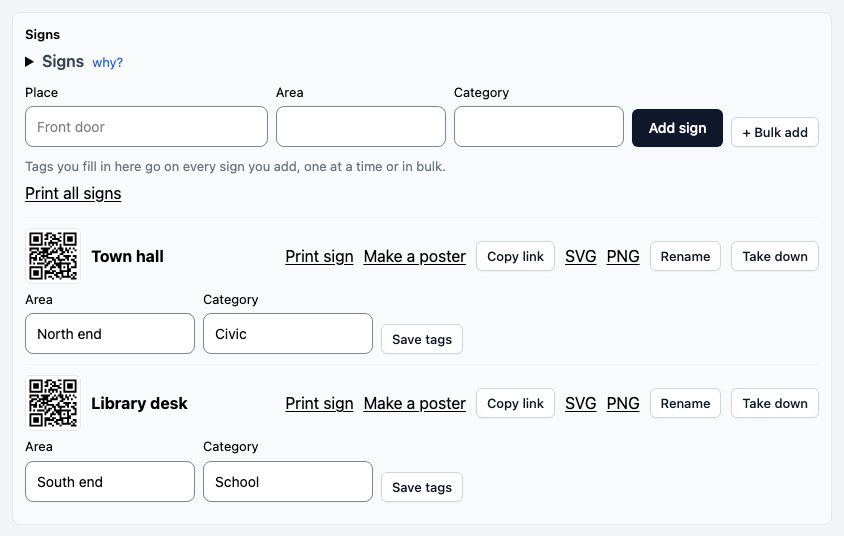
Under Signs, type the Place and press Add sign, or use + Bulk add for many. Each sign has Print sign, Make a poster, Copy link and its code as SVG or PNG. Print all signs prints them all. Rename changes a sign's name at any time: type the new one and press Save name. Only the name changes — the sign's code and link stay as they are, and so do the votes that came through it, so a sign already on a door keeps working. Take down retires a sign.
A printed sign shows the series name, with the place small in its top corner — never a question — so it stays right from round to round. Between rounds, the page the sign opens shows the series name, not the place: the person scanning it is standing there.
Past rounds lists every round that has run, and what it ran.
Still stuck? Signed in, use Contact RollPoll. Not signed in, Contact us.